How to Make the Stones to Castle AI Video from One Photo
Use one portrait to make the Stones to Castle AI video. See the four reference shots and learn how to check the reveal and time your caption.
The “They threw stones, I built a castle” trend tells a story in four shots. Stones fall around the lead, the lead stacks them, a castle rises, and the lead looks out from the balcony. The balcony close-up is where the reveal becomes personal.
1. Choose a portrait for the balcony shot
Use one clear adult portrait with the face and upper body visible. Try a front-facing or slightly angled photo in even light. If you're choosing between two shots, use the one where the face is easier to recognize at thumbnail size. Avoid group photos, sunglasses, and heavy shadows across the eyes.
2. Start with the vertical template
Open the Stones to Castle AI template and select Turn the Stones Into a Castle. Upload the portrait as the replacement photo. The template is designed to replace the lead in the black dress, including in the balcony close-up, while keeping the crowd and castle.
For a vertical feed, start with the template's default 9:16 frame and 10-second duration. Review the credit quote before generating.
3. Check the sequence before downloading
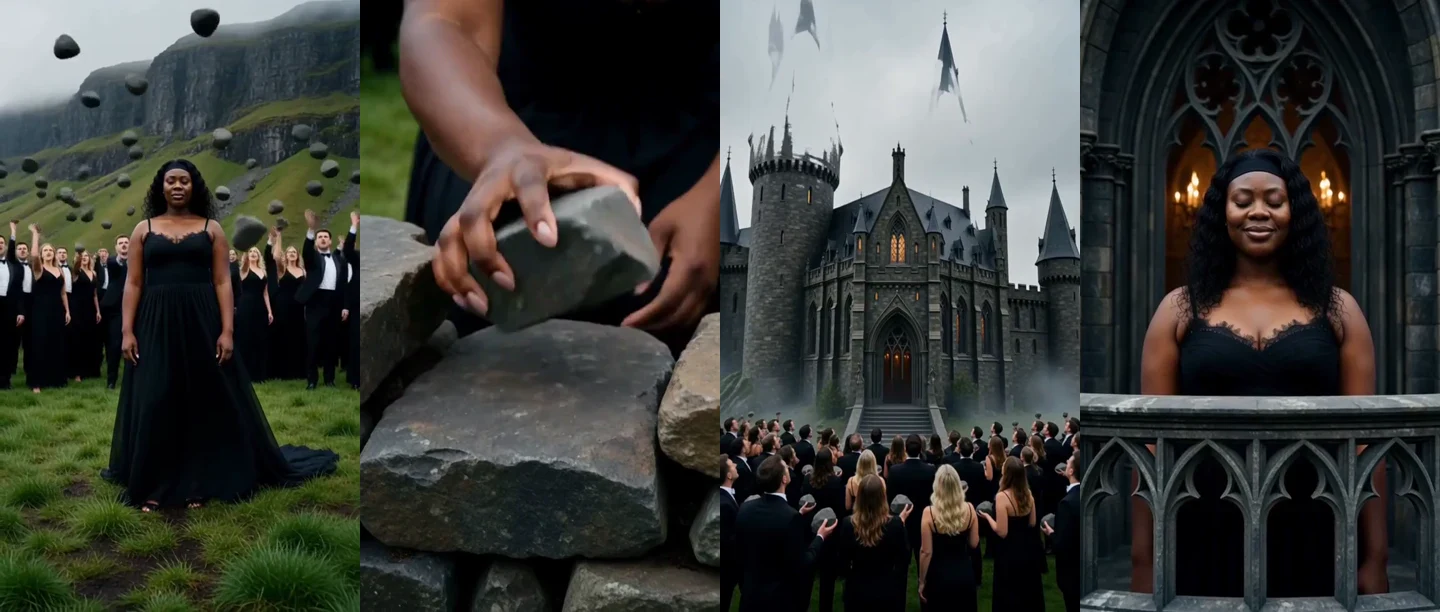
- The setup. Can you see the stones fall and tell that the lead is using them to build?
- The reveal. Look for a visible progression from loose stones to a wall or castle. If the reveal feels rushed, try a longer supported duration.
- The balcony. Pause on the final close-up and compare it with your portrait. If the face changes noticeably, try a sharper photo with more even lighting.
4. Time the caption to the castle reveal
Add the caption in your editor after downloading. Put “They threw stones” over the opening and bring in “I built a castle” as the structure rises. Keep the text clear of the lead's face and leave the balcony shot long enough to read as the ending.
The default Seedance setting is silent. To add music, check the sound picker in the app where you plan to post and preview the caption with the track in place.